Best Screen Recording Software (Free & Paid)
Are you looking for the best screen recording software solutions for your business or team? Check out our top picks in 2026, both free and paid!
.avif)

Screen recording software lets you capture everything happening on your computer—your screen, cursor movements, audio, and webcam feed. Whether you need to create tutorials, record presentations, or capture webinars, choosing the right screen recording software makes the difference between a quick recording and a polished final product. You'll find options that fit any budget and skill level, from completely free tools to feature-rich paid solutions. This guide breaks down the best choices to help you pick one that matches your workflow.
What Is Screen Recording Software?
Screen recording software captures video of your monitor in real time. You can record your entire display or just a specific area of the screen. The software also captures audio from your microphone and your computer's system sounds, allowing you to add narration or music while recording.
Most screen recording software includes basic editing tools—trim, crop, annotate, and add text or graphics. Some options go further with effects, transitions, and advanced video editing built right in. You control when to start and stop the recording, what resolution you want, and where to save the file once you're done.
Why Use Screen Recording Software?
Screen recording software solves real problems in business and education. Here's what you can do with it:
- Training and onboarding: Record step-by-step guides so new employees can learn at their own pace
- Product demos: Show potential customers exactly how your product works in action
- Technical support: Document bugs or issues so your support team can fix them faster
- Webinar recording: Capture live presentations and repurpose them later
- Content creation: Build tutorials, how-to videos, and educational courses
- Remote communication: Share recordings with your team instead of sitting through another meeting
- Compliance and security: Keep a record of processes to ensure everyone follows procedures
Benefits of Screen Recording Software for Businesses
Screen recording software goes beyond just making videos. It addresses real business needs across departments.
Faster Training and Onboarding
Creating written documentation takes time. Recording a video of the process instead lets employees see exactly what they need to do. Once recorded, the video works for every new hire who comes along. You save time on repeated explanations and reduce the back-and-forth questions. Employees retain information better when they see it in action rather than reading step-by-step text.
Better Communication With Remote Teams
When your team works across different time zones, synchronous meetings don't always work. Screen recordings let you share information asynchronously. A team member in Tokyo can watch your recording while someone in New York sleeps. This keeps projects moving without forcing everyone into the same meeting at inconvenient times. You can also add annotations, highlights, and notes directly to your video to emphasize important points.
Improved Technical Support
Technical issues are hard to explain in words alone. A customer's description of a bug might miss crucial details. With screen recording software, you can ask the customer to record what's happening on their screen. Their recording shows exactly what went wrong, making it much easier for your support team to diagnose and fix the problem. You can even create a library of recorded solutions for common issues.
Content and Marketing Advantages
Marketing teams use screen recording software to create product demos, webinar content, and educational videos without hiring a video production company. You can record your screen, add your webcam in the corner for a personal touch, and publish directly to YouTube. This is how many companies build their online training resources and sales content without massive production costs.
Types of Screen Recording Software
Screen recording software falls into a few categories, each designed for different needs.
Free Screen Recording Tools
Free options give you basic recording and some editing features with zero cost. These work well for simple tasks like quick tutorials or bug reports. Most free tools don't include advanced editing, cloud storage, or premium features, but they get the job done.
Paid Desktop Software
Paid desktop applications offer more power. You get advanced video editing, better performance with large files, and usually priority customer support. These tools sit on your computer and don't need an internet connection to record. Pricing typically ranges from $30 to $250 per year or more.
Browser-Based Screen Recording
Browser extensions let you record straight from Chrome or Firefox without installing anything. These are usually fast and simple, great for quick recordings. The trade-off is less advanced editing and potential performance issues if your browser is already using a lot of system resources.
How to Choose the Best Screen Recording Software
Before you download anything, ask yourself these questions:
- What will you record? Simple screen tutorials need less power than recording gameplay or live streams. If you're just sharing your desktop, even basic free software works.
- How much editing do you need? Quick clips might only need trimming. Complex projects with multiple clips, effects, and color correction need more advanced tools.
- Which platform do you use? Some software only works on Windows or Mac. Check that your operating system is supported before buying.
- Do you need cloud storage? If you want automatic backups or easy sharing, look for tools with built-in cloud options. If you prefer storing files locally, desktop software is fine.
- What's your budget? Free tools are hard to beat if you have simple needs. Investing $50-150 per year in paid software makes sense if you record frequently.
10 Best Free and Paid Screen Recording Software in 2026
Here are the ten best free and paid screen recording software solutions available today:
1. OBS Studio (Free)
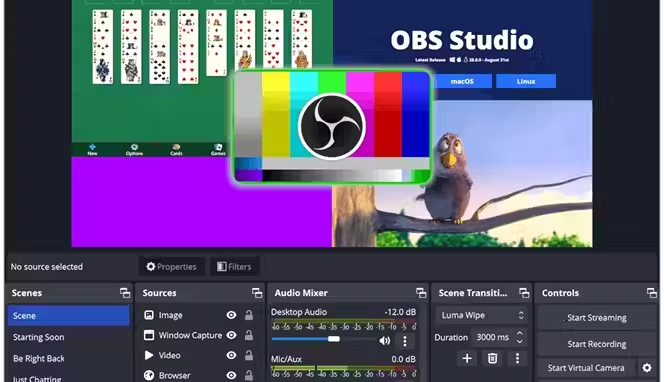
OBS Studio is the choice for anyone serious about streaming or recording. It's free, open-source, and works on Windows, Mac, and Linux. OBS doesn't hold you back—you can record in high definition with no time limits or watermarks.
The interface takes a moment to learn, but that's because OBS gives you real power. You can create custom scenes with multiple video sources, layer graphics and text overlays, and control everything while recording. Streamers use OBS to live broadcast to Twitch and YouTube while managing multiple camera angles and on-screen graphics.
For simple screen recordings, OBS feels like overkill. But if you want flexibility and don't want to pay, this is your tool.
2. Loom (Free + Paid)
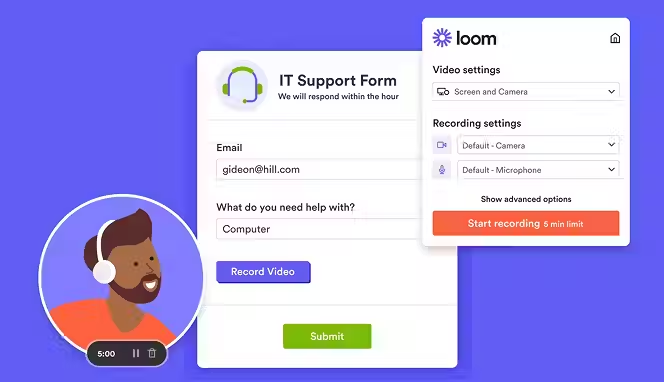
Loom cuts out all the complexity. You open it, click record, and share a link. That's the appeal—it's genuinely that simple. The free version gives you unlimited recordings with basic editing features. You can add comments, captions, and share links with password protection.
The pro plan starts at $12.50 per month and adds unlimited cloud storage, better video quality, custom branding, and more editing tools. Loom works on Windows, Mac, and mobile devices, so you can record anywhere. The interface is clean and intuitive, and the automatic sharing is a real time-saver.
3. Camtasia (Paid)
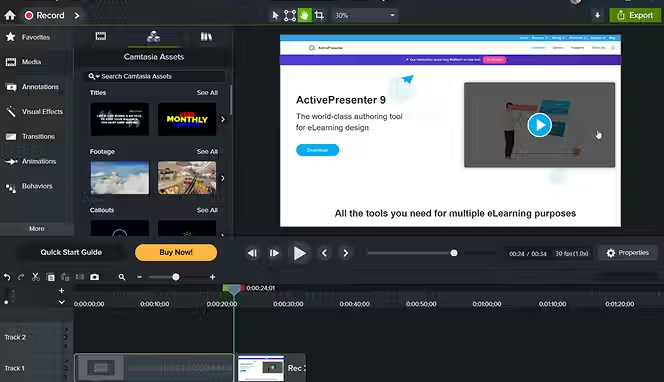
Camtasia combines recording and editing in one powerful tool. You get a full-featured video editor with effects, transitions, music library, and animations. After recording, Camtasia opens the editor automatically so you can add zoom effects, draw attention to specific areas, and polish the final product.
The learning curve is steeper than simpler tools, but if you're making professional videos regularly, Camtasia earns its cost. Pricing is $180 per year for the base version and $249 per year for the Create version with AI features. The trade-off is that it requires more system resources and isn't the fastest for quick recordings, but the output quality justifies it for many users.
4. ScreenPal (Free + Paid)
.avif)
ScreenPal (formerly Screencast-O-Matic) hits a sweet spot between simplicity and features. The free version records videos up to 15 minutes and includes basic editing. There's no watermark on the free tier, which is a major bonus. The paid plan adds unlimited recording time, advanced editing, and a media library for $3-5 per month.
What sets ScreenPal apart is its built-in hosting. You don't worry about managing large video files on your computer. Your recordings upload automatically to ScreenPal's servers where you can organize, edit, and share them with custom links. This is ideal if you're constantly sharing videos with your team.
5. ShareX (Free)
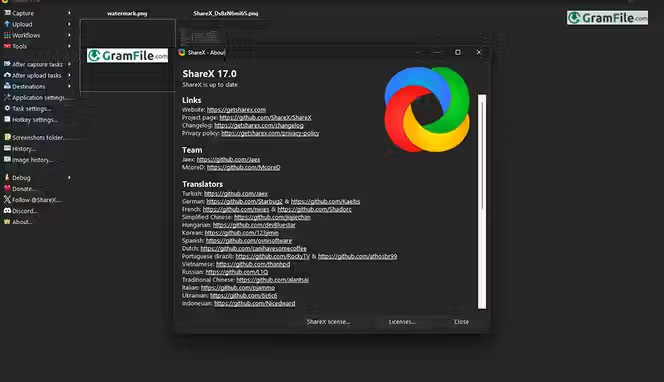
ShareX is another open-source option for Windows that's completely free. It records your screen without watermarks, and you can save files as MP4, GIF, or even WebP format. The built-in photo editor lets you annotate screenshots and videos before sharing.
ShareX isn't as intuitive as Loom, but it's powerful for advanced users who want granular control. You can set up custom keyboard shortcuts for frequent tasks and even upload recordings directly to cloud storage or image hosting services.
6. Snagit (Paid)
Snagit is the professional's choice for screenshots and quick video recordings. It specializes in capturing images from anywhere on your screen—scrolling captures, zooming in on specific regions, and capturing entire windows. The video recording feature works well for short clips, though it's not as powerful as dedicated video software.
Snagit costs $39.95 per year. You get cloud storage, powerful annotation tools, and integration with other apps. It's perfect for teams that need to quickly capture and share visual information without spending time on editing.
7. CleanShot X (Mac Only, Paid)
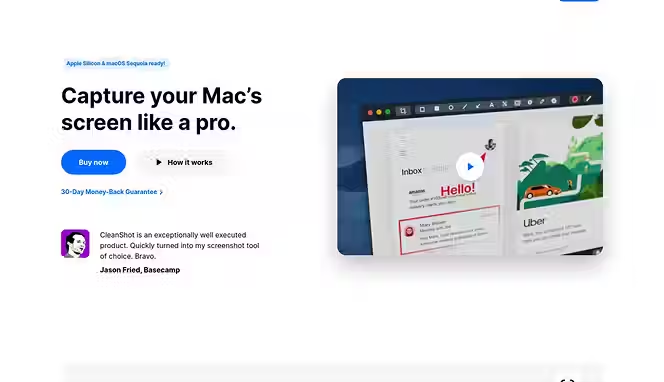
CleanShot X is built specifically for Mac users. The interface is sleek and minimal, matching Mac's design language. You get screen recording, screenshot capture, and built-in annotation tools. The app integrates deeply with macOS, giving you quick access from the menu bar.
CleanShot X costs $29 one-time or $8 per month. The main downside is it only works on Mac, so Windows users can't use it. But if you're on a Mac and want something that just works without complexity, this is excellent.
8. iSpring Suite (Paid)
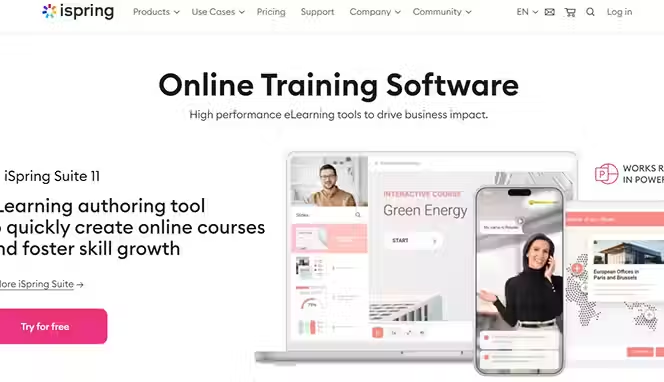
iSpring Suite is built for creating e-learning courses and instructional videos. You get screen recording plus a full course builder with interactive quizzes and assessments. The software lets you add interactions and branching logic to your videos, which goes far beyond simple screen recording.
Pricing starts at $970 per year, and there's a 14-day free trial. This is expensive, but if your job is creating professional training content, iSpring pays for itself through the time it saves. You can export courses in SCORM, xAPI, and HTML5 formats for any learning management system.
9. Free Cam (Free + Paid)
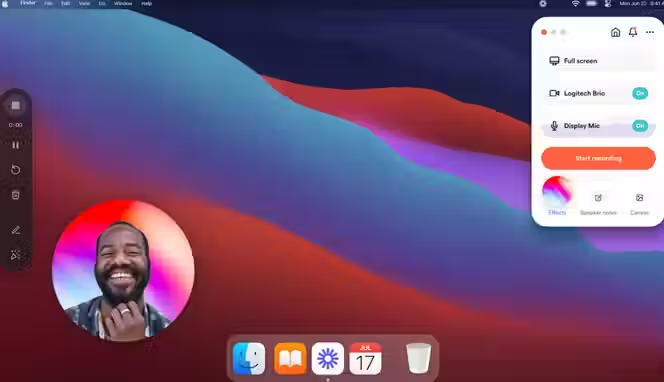
Free Cam records your screen, webcam, and audio with no time limits or watermarks. The free version is genuinely complete—you get recording and basic editing. The pro version ($227 per year) adds more effects and editing options, but the free tier is surprisingly capable.
One strength of Free Cam is built-in noise removal. Your recording automatically cleans up background sound, which is useful if you're recording from a busy office. It works on Windows only.
10. Movavi Screen Recorder (Free and Paid)
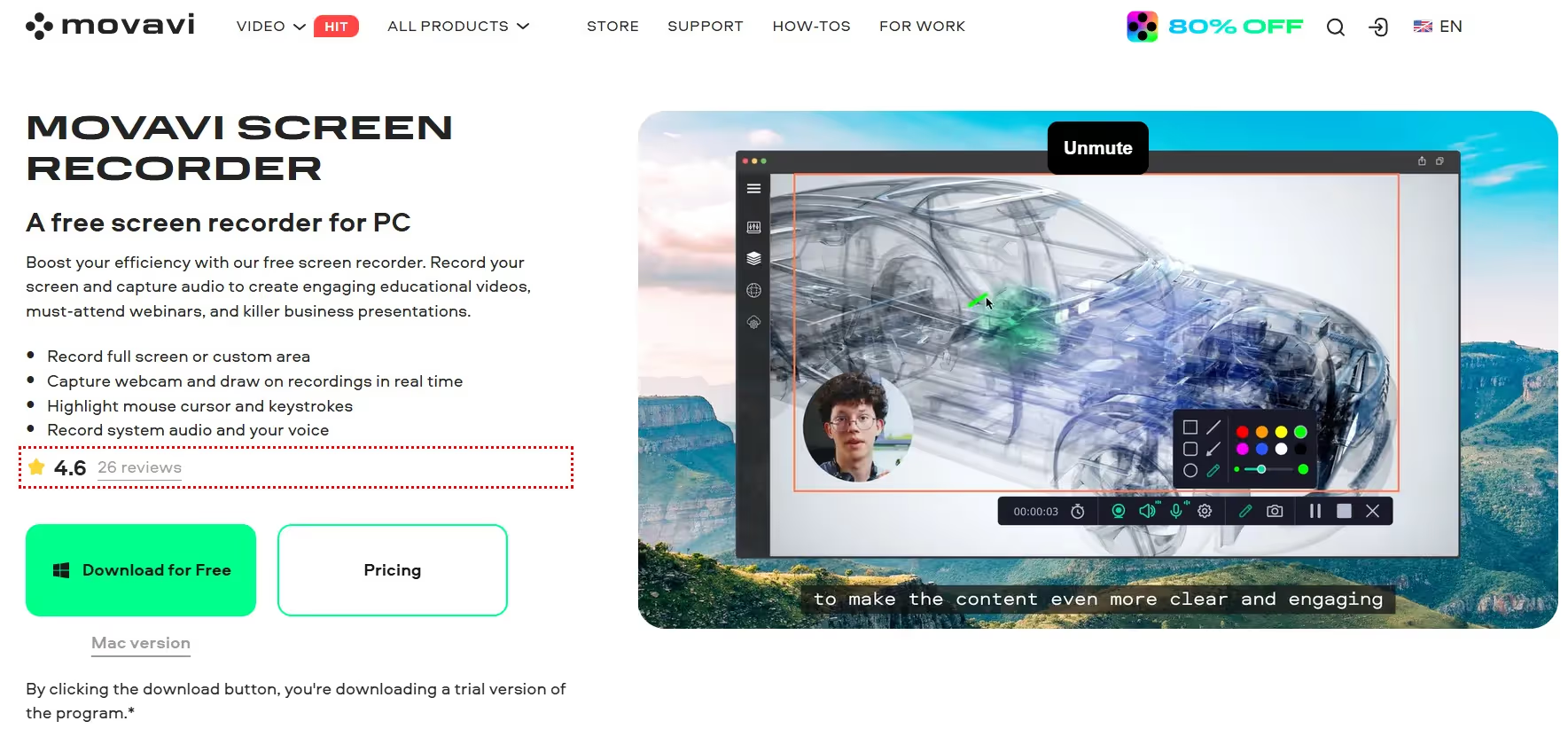
Movavi offers scheduled recording, which is unique. You can set it to start recording at a specific time, which is helpful for capturing webinars or live events when you can't be there manually. The editor includes transitions, music, and effects.
Movavi costs around $40 per year and works on Windows and Mac. It's simple to use with a clean interface. The scheduled recording feature alone makes it worth considering if you regularly record events at specific times.
Comparing Free vs. Paid Screen Recording Software
Free screen recording software suits simple needs like quick demos or bug reports. You save money and can start recording immediately. The trade-offs are limited editing, no priority support, and sometimes watermarks on your videos.
Paid software makes sense if you record frequently or need professional output. You get advanced editing, faster performance, cloud storage, and priority support. If you use screen recording software multiple times per week, spending $30-50 per year is worth the productivity gain.
Conclusion
Many people start with free software to learn the basics, then upgrade to paid tools as their needs grow. That's a smart approach—no need to invest in expensive software if you only need to record a few times per year. Pick what works best for you and run with it!
Start your dropshipping business today
Screen Recording Software FAQs
Can I record my screen while using other programs without interrupting my work?
Yes, most screen recording software runs in the background. You can record while using email, spreadsheets, or any other application. The recording doesn't slow down your computer unless you're capturing at very high resolution on an older machine. Some tools like OBS and Camtasia perform better than others with system resources, so test on your computer first.
What video formats do screen recording tools support, and which should I use?
Most tools export to MP4, MOV, AVI, and WebM formats. MP4 is your best choice for web sharing because it works on all devices and platforms. Use MOV if you're working on a Mac or in Final Cut Pro. WebM is smaller but only works in web browsers. Check what your platform supports before recording.
How do I reduce the file size of my screen recordings without losing quality?
Lower your recording resolution from 4K to 1080p or 720p. Reduce the frame rate from 60 fps to 30 fps unless you're recording fast motion. Use MP4 format instead of larger formats. Edit out unnecessary parts before exporting. Your software's export settings usually have quality sliders—find the balance that works for your needs.
Is screen recording software safe for privacy and security?
Screen recording software itself is safe. The risk is what you record. If you capture login credentials, passwords, or confidential data, that becomes a security risk. Use screen recording in secure environments and delete recordings that contain sensitive information. If recording for compliance purposes, store files in encrypted cloud storage.
Do I need special microphone equipment for better audio quality?
Your computer's built-in microphone is fine for basic recordings. For professional-sounding audio, a USB microphone ($50-150) makes a real difference by reducing background noise. Position it close to your mouth and record in a quiet room. Most screen recording software has audio level controls to help you get good sound.
Which screen recording software works best with video editing software like Adobe Premiere or Final Cut Pro?
Export to MP4 or MOV format and your video editing software will recognize it. Most modern editors accept these formats without issues. If you're using specialized software, check the export options in your screen recorder—they usually optimize for popular editing platforms. Camtasia integrates well with Adobe products, and ScreenFlow is optimized for Mac editing software.


Launch your dropshipping business now!
Start free trial.avif)


Related blogs

Minea Review: Is It Worth It for Dropshipping Product Research?
Read this Minea review to explore its features, pros, cons, pricing value, and whether it is the right product research tool for dropshipping sellers.


Top AI Tools for Small Businesses in 2026
Learn about the top AI tools for small businesses in 2026 for content, finance, agents, and automation. Pick the best AI tools for small businesses that match your workflows and budget, from free and paid.


Which are the Best Print on Demand AI Tools in 2026?
Find out which are the Print on demand AI tools in 2026. Save time, boost ROI, and improve product quality. Compare features, pricing, and real workflows for POD stores.