Come usare Spocket con Wix per lanciare un negozio di dropshipping
Scopri come usare Spocket con Wix per avviare un negozio di dropshipping, importare prodotti, impostare i prezzi, configurare la spedizione e iniziare a vendere con fornitori statunitensi/europei.
.avif)

If you want to launch a Wix dropshipping store without buying inventory, packing boxes, or managing a warehouse, Spocket gives you a practical path from idea to product launch. With the Spocket Wix integration, you can connect your Wix store, browse products from global suppliers, customize listings, set pricing, and process orders from one connected workflow.
This guide walks through how to use Spocket with Wix step by step, from installing the app to pushing your first products live. It also covers the details that matter before you publish: margins, shipping rules, product quality, and the launch checks that help turn a basic store into a credible brand.
Why Use Spocket with Wix?
Wix is a beginner-friendly ecommerce platform, and Spocket helps fill the product-sourcing side of the business. Instead of manufacturing or stocking products yourself, you can choose items from suppliers, add them to your Wix store, and sell them under your own brand experience.
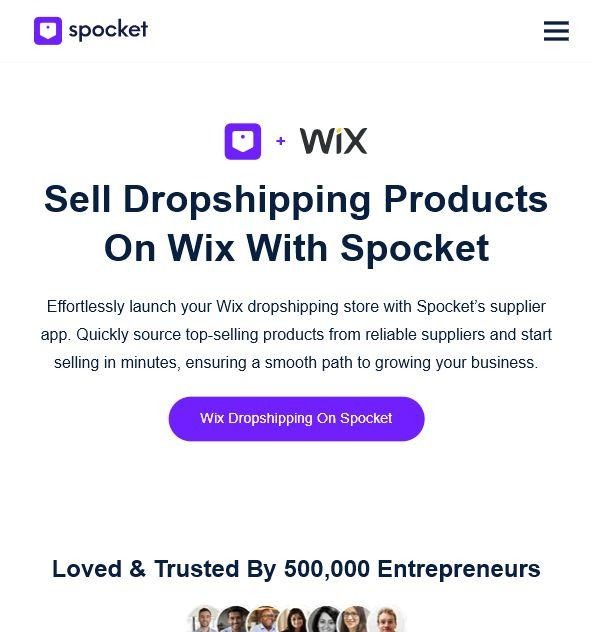
On the Wix App Market, Spocket is listed as a dropshipping app for verified US and EU suppliers, with a free plan available. The app listing highlights a large supplier network, discounted products, one-click order fulfillment, branded invoices, sample orders, and stock updates designed to reduce the risk of selling out-of-stock products.
That combination is especially useful for new store owners who want to test product demand quickly. You can build a focused catalog, order samples before committing to a niche, and use supplier shipping information to shape your Wix delivery settings.
Before You Start: What You Need
- A Wix website with Wix Stores enabled, so your site can display products and accept orders.
- A Spocket account, so you can browse products, create an import list, and manage supplier orders.
- A clear niche or buyer segment, such as pet accessories, beauty products, home goods, apparel, gifts, or print-on-demand products.
- A margin target, including product cost, supplier shipping, Wix/store fees, payment processing, taxes, and advertising costs.
- A shipping policy, return policy, and customer support process before you start driving traffic.
How to Connect Spocket to Wix?
Connecting Spocket to Wix is a simple process that lets you add high-quality dropshipping products to your store and manage orders more efficiently.
Install Spocket from the Wix App Market
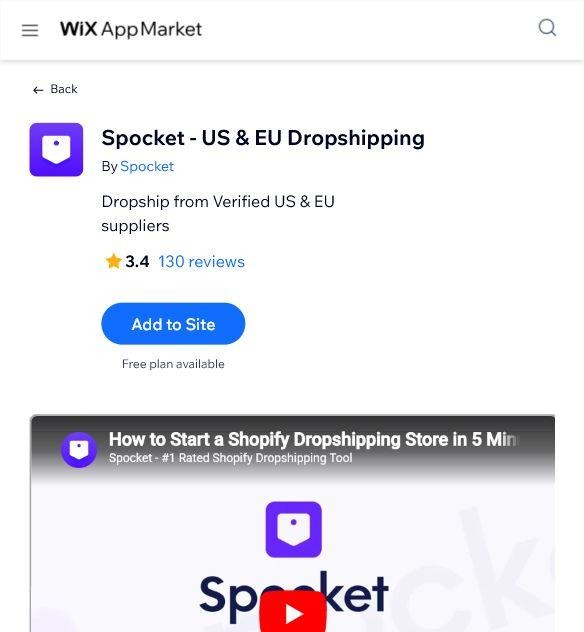
Start in Wix by opening the App Market and searching for Spocket. The Wix Help Center setup flow is straightforward: go to your editor, click Add Apps, search for Spocket, choose Add to Site, and then confirm with Agree & Add. You can also start from the Spocket app page in the Wix App Market and use the Add to Site button.
- Open your Wix editor or Wix App Market.
- Search for Spocket.
- Select Spocket - US & EU Dropshipping.
- Click Add to Site.
- Confirm the permissions prompt to connect the app.
Verify Your Email and Open Spocket
After you add Spocket to Wix, check the email associated with your Wix account and verify it if prompted. Then open Spocket and connect your store. Once connected, you can begin browsing products and building your import list.
How to Find and Add Products from Spocket to Wix?
Once your Wix store is connected, you can start browsing Spocket’s product catalog, choosing items that match your niche, and adding them directly to your store in just a few clicks.
Add Products to Your Import List
Inside Spocket, browse the product catalog and look for items that match your niche, shipping regions, and desired price range. When you find a product you want to test, add it to your Import List. This is a staging area: products in the import list do not appear in your Wix store until you push them live.
- Prioritize products with clear photos, realistic shipping times, and enough margin after shipping and fees.
- Compare variants before publishing, especially for apparel sizes, colors, bundles, and seasonal products.
- Order samples when product quality, packaging, or delivery speed could affect reviews and repeat purchases.
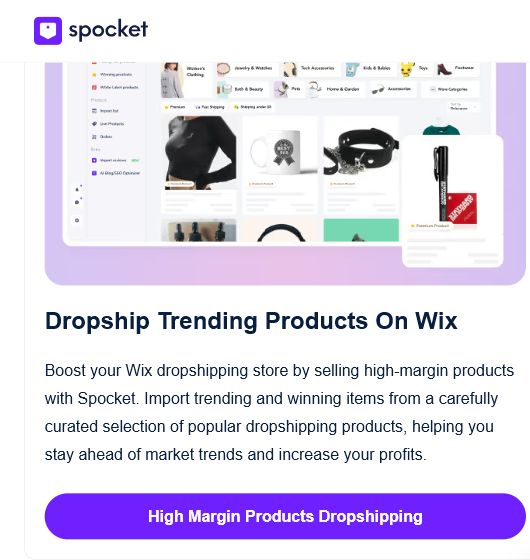
Screenshot: Spocket highlights trending product discovery for Wix dropshipping stores.
Customize Product Listings Before Publishing
Do not push default supplier copy straight into your store. Before publishing, edit product titles, descriptions, images, categories, and variants so each listing fits your brand voice and customer expectations. This is also where you can remove variants you do not want to sell.
A strong product page should answer the buyer's practical questions: what the product is, who it is for, what problem it solves, what is included, how shipping works, and why the customer should buy from your store instead of another seller.
Push Products to Your Wix Store
When the product details are ready, push items from your Spocket import list to Wix. You can add products one by one with Push To Store or move a batch with Push All. After products appear in Wix, preview your storefront and check every product page as a customer would.
Set Prices, Margins, and Shipping the Smart Way
Pricing is where many dropshipping stores lose money. Spocket lets you use pricing rules to apply a consistent markup, and you can also set product-specific prices when a product needs a different strategy. Use pricing rules for consistency, then manually review hero products, bundles, and paid-ad products.
For shipping, remember this important detail: supplier shipping rates do not automatically sync with Wix. Use the shipping price and delivery information shown in Spocket as a guide, then create your shipping rules in the Wix dashboard. Many store owners create a dedicated delivery profile for dropshipping products so those products can have different shipping rates from items they ship themselves.
A Simple Margin Formula
Target retail price = product cost + supplier shipping + platform/payment costs + ad cost per order + desired profit.
If you want to advertise the product, price it with acquisition costs in mind from day one. A product that looks profitable before ad spend can become unprofitable once you pay for clicks.
How Orders Work After Launch
When a customer buys a Spocket product from your Wix store, the order still needs to be processed through Spocket. Go to the My Orders tab in Spocket, select the order, checkout, and place the supplier order. Paying the supplier starts the fulfillment process.
After payment, the supplier ships the order to the customer. Wix notes that tracking information can be added to the relevant Wix order after the Spocket order is processed, which helps customers follow delivery without extra manual updates.
Wix Dropshipping Launch Checklist
- Connect Spocket to Wix and confirm the app is active.
- Choose a niche and import 15 to 25 focused products instead of a random catalog.
- Rewrite product titles and descriptions for search intent and conversion.
- Check variants, images, product categories, and pricing before pushing products live.
- Create Wix shipping rules or a delivery profile based on supplier shipping details.
- Set up checkout, payment methods, tax settings, policies, and customer emails.
- Place at least one sample order for your main product category.
- Preview the store on desktop and mobile before launching paid traffic.
Tips to Get More Sales from Your Wix Dropshipping Store\
Getting more sales from your Wix dropshipping store comes down to choosing the right products, creating a smooth shopping experience, and using smart marketing strategies to turn visitors into buyers.
Build Around a Niche, Not a Random Catalog
A focused store is easier to brand, optimize, and advertise. Instead of importing hundreds of unrelated products, build a collection around one buyer group and one clear promise. For example, a pet travel store, eco-friendly home store, or minimalist accessories store is easier to remember than a general product dump.
Use SEO on Every Product Page
Write unique product titles, benefit-led descriptions, FAQs, and alt text. Include long-tail keywords naturally, such as waterproof dog travel bowl, handmade silver ring, organic cotton baby blanket, or fast shipping home decor. Unique copy helps search engines and AI answer engines understand why your page deserves to be shown.
Make Shipping Expectations Obvious
Fast shipping is one of Spocket's core selling points, but customers still need clarity. Put estimated delivery times, shipping regions, and return notes where buyers can see them before checkout. Clear expectations reduce support tickets and refund requests.
Turn Spocket Features into Trust Signals
Use supplier quality, product samples, branded invoices, and curated US/EU product sourcing as part of your brand story. Customers do not need to know every operational detail, but they do need to feel that your store is reliable.
Start Your Wix Dropshipping Store with Spocket
The fastest way to learn dropshipping is to launch a focused store, test a small product set, and improve based on real customer behavior. Spocket gives Wix sellers a connected workflow for product discovery, importing, order processing, supplier shipping, and brand-friendly selling.
If you are ready to launch, start by adding Spocket to Wix, build your import list, customize your best products, and push your first collection live. You can begin with the free plan, test products with samples, and upgrade when your catalog and order volume need more room to grow.
Start your Wix dropshipping store with Spocket and source products from reliable US, EU, and global suppliers today.
Use Spocket with Wix to Launch a Dropshipping Store FAQs
Can I use Spocket with Wix?
Yes. Spocket is available through the Wix App Market and can be connected to a Wix store so you can source products, create an import list, and push products to Wix.
How do I add Spocket to my Wix store?
Open the Wix App Market, search for Spocket, click Add to Site, and confirm the connection. After setup, verify your email if prompted and open Spocket to start adding products.
Is Spocket free on Wix?
The Wix App Market listing shows a free plan available. Some premium products and expanded features may require a paid Spocket plan, so check the current plan details before launch.
Does Spocket handle fulfillment for Wix orders?
Spocket helps process supplier orders, but you still need to pay for the order in Spocket after a customer purchases from your Wix store. Once paid, the supplier can ship the order to the customer.
Posso personalizzare i prodotti Spocket prima di aggiungerli a Wix?
Sì. Modifica titoli, descrizioni, immagini, categorie, prezzi e varianti dall'elenco di importazione prima di caricare i prodotti su Wix.
Le tariffe di spedizione di Spocket si sincronizzano automaticamente con Wix?
No. Usa le tariffe di spedizione e i tempi di consegna del fornitore come guida, quindi crea regole di spedizione o profili di consegna nella tua dashboard di Wix.
Quanti prodotti dovrei aggiungere prima del lancio?
Inizia con 15-25 prodotti mirati in una nicchia. Un catalogo più piccolo e curato è più facile da ottimizzare, pubblicizzare e supportare rispetto a un negozio generico e ampio.
Spocket è adatto ai principianti che usano Wix?
Sì, specialmente per i principianti che desiderano approvvigionamento prodotti, strumenti di importazione e gestione degli ordini senza gestire l'inventario. La chiave è personalizzare le inserzioni e impostare attentamente spedizione/prezzi prima del lancio.
Start your dropshipping business today
Usa Spocket con Wix per lanciare un negozio di dropshipping – Domande Frequenti
Posso usare Spocket con Wix?
Sì. Spocket è disponibile tramite il Wix App Market e può essere collegato a un negozio Wix in modo da poter reperire prodotti, creare un elenco di importazione e caricare i prodotti su Wix.
Come aggiungo Spocket al mio negozio Wix?
Apri il Wix App Market, cerca Spocket, clicca su Aggiungi al sito e conferma la connessione. Dopo la configurazione, verifica la tua email se richiesto e apri Spocket per iniziare ad aggiungere prodotti.
Spocket è gratuito su Wix?
La scheda del Wix App Market mostra un piano gratuito disponibile. Alcuni prodotti premium e funzionalità estese potrebbero richiedere un piano Spocket a pagamento, quindi controlla i dettagli del piano attuale prima del lancio.
Spocket gestisce l'evasione degli ordini Wix?
Spocket aiuta a elaborare gli ordini dei fornitori, ma devi comunque pagare l'ordine in Spocket dopo che un cliente acquista dal tuo negozio Wix. Una volta pagato, il fornitore può spedire l'ordine al cliente.
Posso personalizzare i prodotti Spocket prima di aggiungerli a Wix?
Sì. Modifica titoli, descrizioni, immagini, categorie, prezzi e varianti dall'elenco di importazione prima di caricare i prodotti su Wix.
Le tariffe di spedizione di Spocket si sincronizzano automaticamente con Wix?
No. Usa le tariffe di spedizione e i tempi di consegna del fornitore come guida, quindi crea regole di spedizione o profili di consegna nella tua dashboard di Wix.
Quanti prodotti dovrei aggiungere prima del lancio?
Inizia con 15-25 prodotti mirati in una nicchia. Un catalogo più piccolo e curato è più facile da ottimizzare, pubblicizzare e supportare rispetto a un negozio generico e ampio.
Spocket è adatto ai principianti che usano Wix?
Sì, specialmente per i principianti che desiderano l'approvvigionamento dei prodotti, strumenti di importazione e l'elaborazione degli ordini senza gestire l'inventario. La chiave è personalizzare le inserzioni e impostare attentamente spedizione/prezzi prima del lancio.


Launch your dropshipping business now!
Start free trial


Blog correlati
Elenco fornitori dropshipping: dove trovare fornitori verificati
Esplora la nostra directory di fornitori dropshipping verificati negli Stati Uniti e nell'Unione Europea, completa di nicchie, tempi di spedizione e prezzi. Inizia oggi la tua prova gratuita.

Come negoziare con i fornitori dropshipping: 9 tattiche che funzionano davvero
Scopri come negoziare con i fornitori dropshipping prezzi, MOQ e termini di pagamento. Strategie comprovate e modelli di email per aumentare i tuoi margini. Prova Spocket gratuitamente.

Best Clothing Dropshipping Suppliers: The 2026 Guide
Compare the best clothing dropshipping suppliers for 2026 — US/EU shipping speeds, pricing, and product quality — and find the right fit to launch your store.